How to export your Google Maps Timeline on iPhone
Google Maps now keeps your Timeline on your phone instead of on the web or in Google Takeout. On iPhone, you can export a full copy straight from the Google Maps app.
Updated November 2026
You’ll end up with one file called location-history.json. Open it in
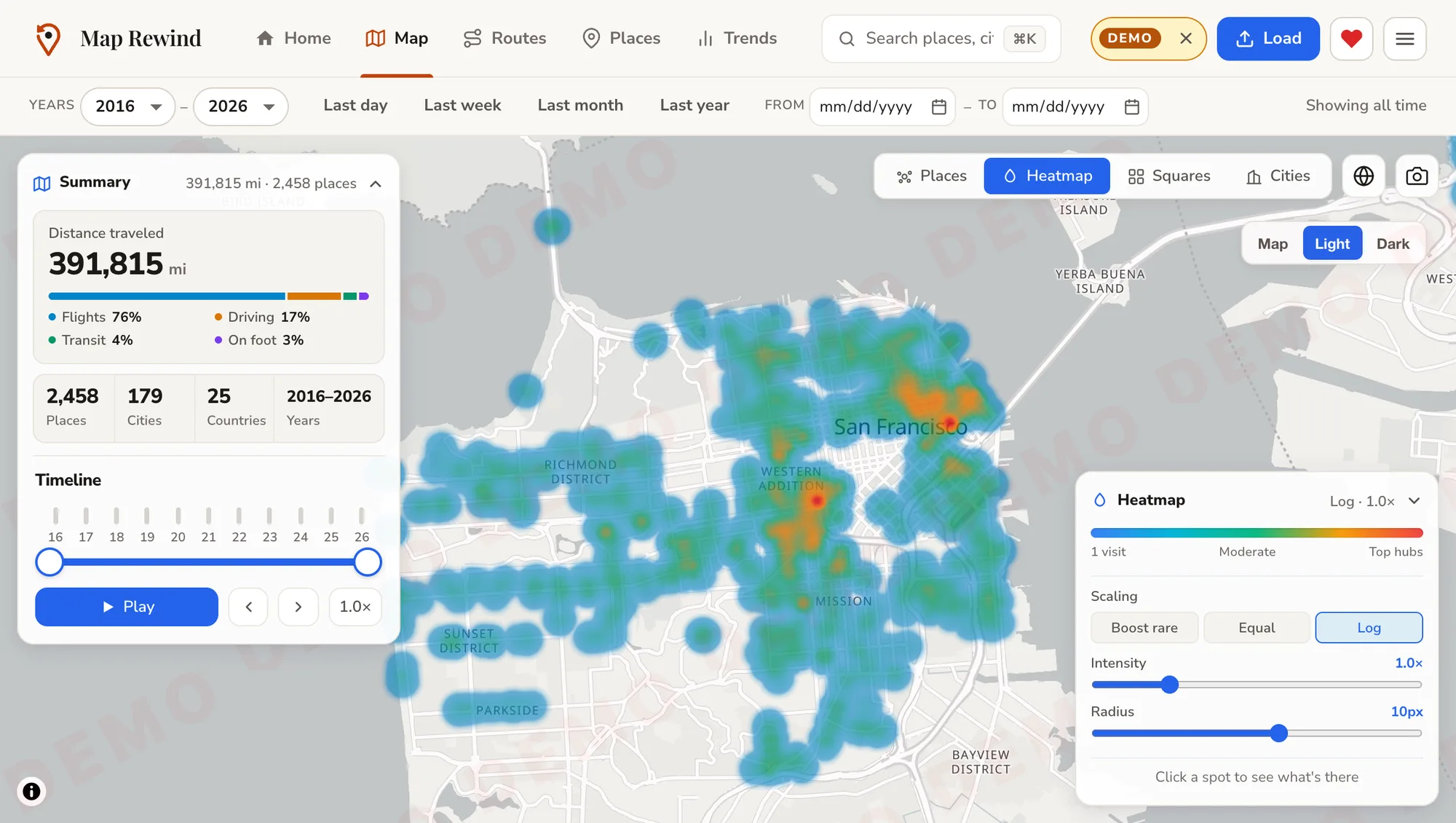
Map Rewind on your phone or computer to see your places, routes, and travel stats on a map.
Before you start
- Make sure Google Maps is installed and signed in to the Google account with your Timeline.
- Timeline needs to be turned on. If it was never enabled, there won’t be any history to export.
- Don’t see the export option? Update Google Maps in the App Store and check again.
Export your Timeline
-
Open Settings in Google Maps
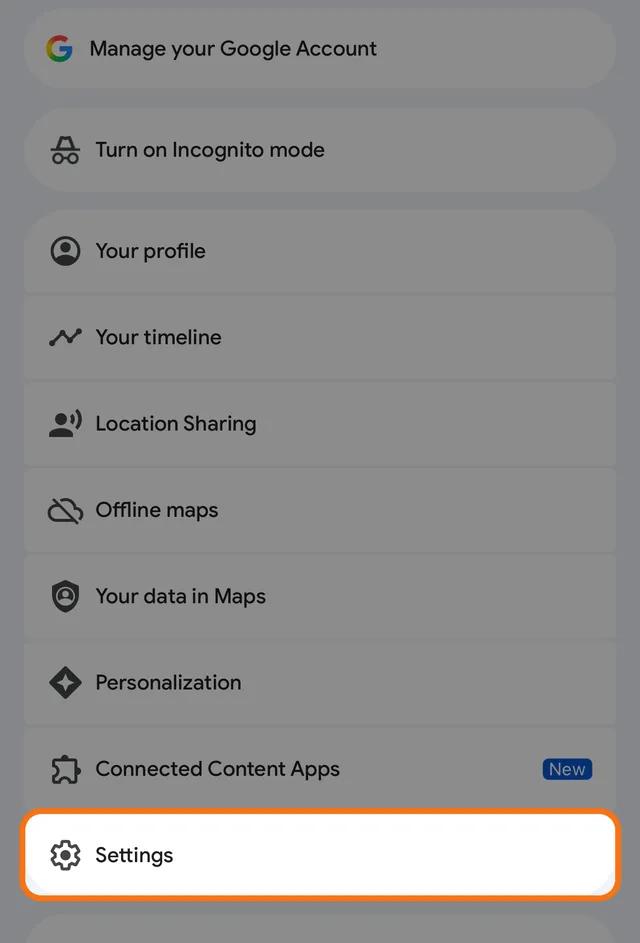
Tap your profile picture in the top-right corner of Google Maps, then scroll down and tap Settings.
-
Open Location & privacy
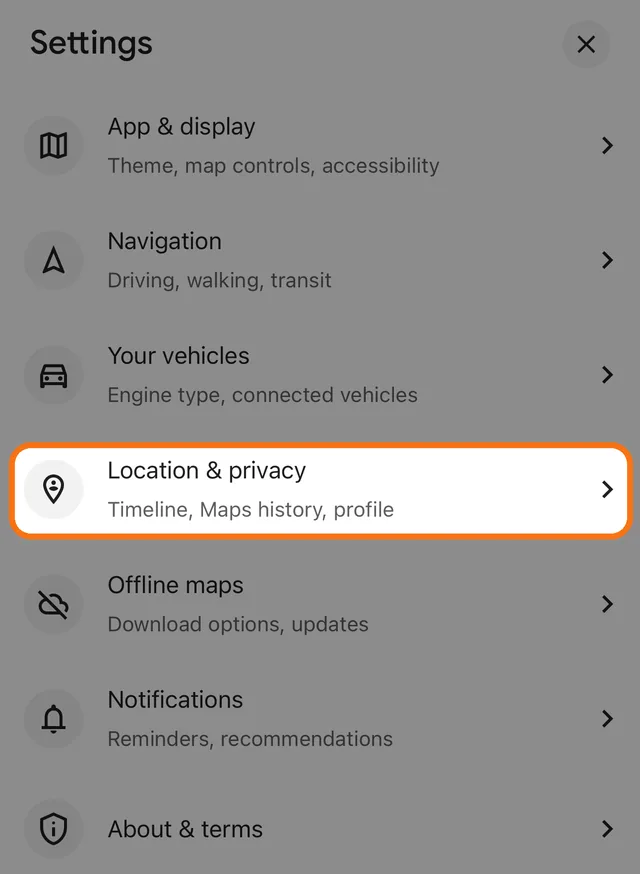
Tap Location & privacy. It mentions Timeline right underneath the title.
-
Tap Export Timeline data
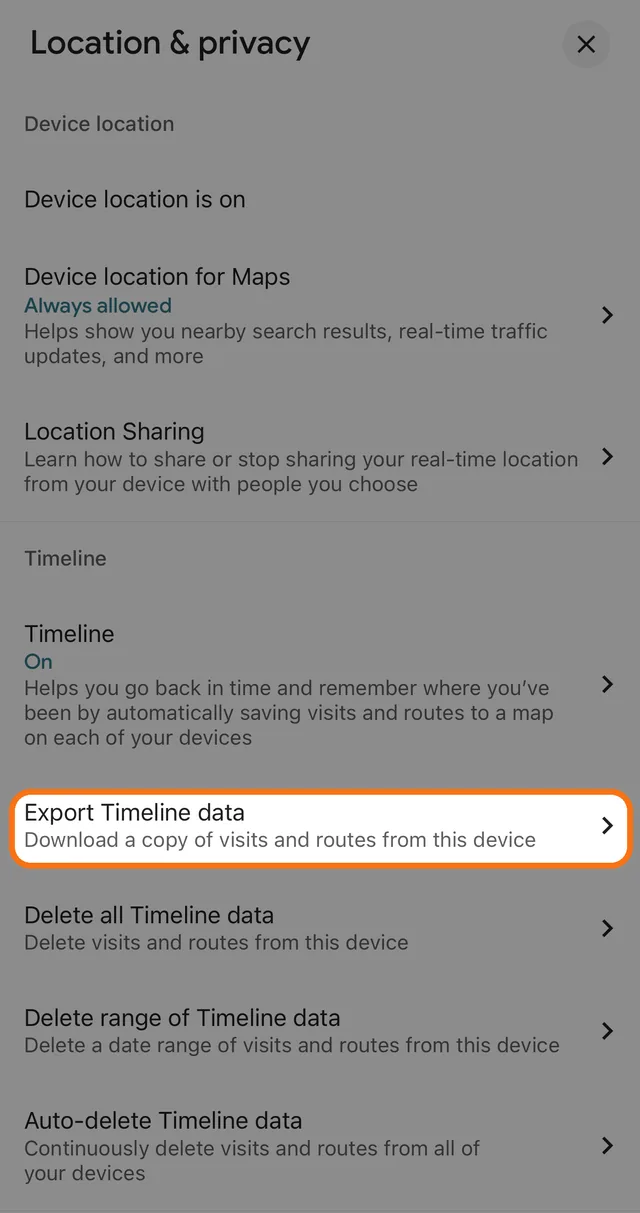
Scroll to the Timeline section and tap Export Timeline data. If you have several years of history, it can take a few seconds to build the file.
-
Save the file
The iOS share sheet opens next. Tap Save to Files to store it on your iPhone or in iCloud Drive. If you want it on a Mac right away, tap AirDrop instead.
Google Maps → profile picture → Settings → Location & privacy → Export Timeline data
Open it on your iPhone
Open maprewind.com in Safari, tap Load my timeline, and pick
location-history.json from the Files app.
Open it on a PC or Mac
Move location-history.json to your computer first, then open maprewind.com and drop
the file onto the page.
- Mac: AirDrop it from your iPhone or grab it from iCloud Drive in Finder.
- Windows: Save it to iCloud Drive or Google Drive and download it on your PC, or email it to yourself.
- Already loaded it in Map Rewind on your phone? Click Receive from another device on your computer, then scan the QR code with your phone’s camera (or open the menu in Map Rewind on your phone, tap Send to another device, and enter the room code and PIN). Everything is encrypted before it leaves your phone.
Is it private?
Yes. Map Rewind reads your file locally in your browser without uploading it to our servers. See the privacy policy for details.
Troubleshooting
There’s no Export Timeline data option
Update Google Maps and double-check that you’re signed in to the right Google account. The option can also be missing if Timeline is turned off or your history was cleared.
The file is smaller than I expected
Timeline is stored per device now. If you got a new iPhone without restoring your
Timeline backup, the export only has what’s on your current phone.
You can fill in earlier years by also loading an old Google Takeout export (Semantic Location History
or Records.json) or importing your Apple Photos.
Some places only show a city name
Phone exports store a Google Place ID for each visit instead of the business name, so Map Rewind shows the nearest city. On the Places tab, you can open any spot in Google Maps to see what it is and name it yourself, or load an older Google Takeout download to pull in names from earlier years.
Have your export ready? Open it on the map.
Open Map Rewind