How to edit your Google Maps Timeline
Timeline gets things wrong sometimes. It might pin you to the café next door or ask whether you really went somewhere. You can fix any visit right in the Google Maps app.
Updated November 2026
Google retired the Timeline website, so all edits happen in the Google Maps app on your phone. Any fixes you make there will show up in your next export.
Other than the first screenshot, the screens below are from an iPhone, and Android works the same way. The place names in the examples are made up.
Open the right day
-
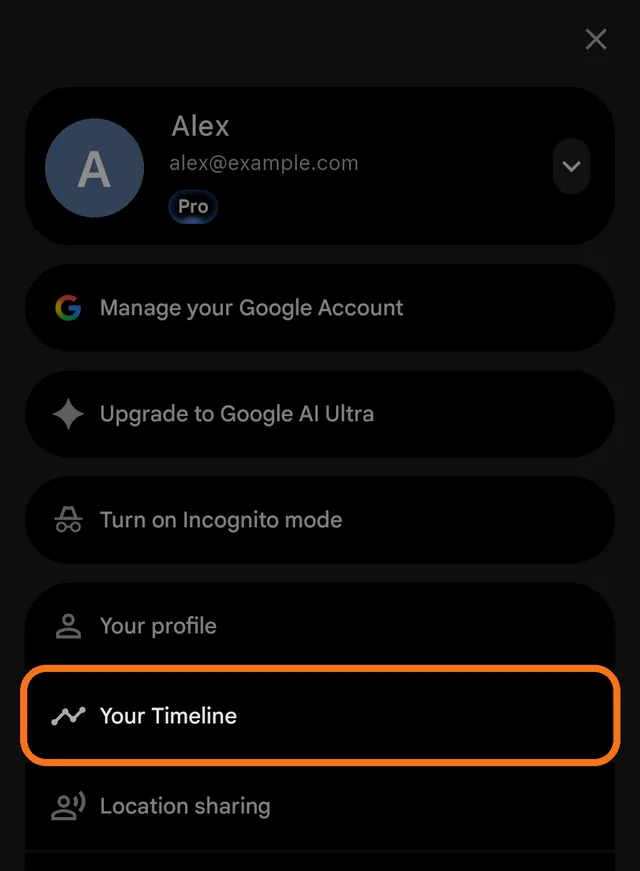
Open Your Timeline
In Google Maps, tap your profile picture in the top corner and choose Your Timeline.
-
Go to the day you want to fix
Timeline opens on the Day tab. Use the arrows on either side of the date to move one day at a time, or tap the date to jump straight to a day on the calendar.
Confirm a visit
When Timeline isn’t sure where you were, it asks. You’ll see a prompt like “Visited Harbor Lane Market?” with Yes and Edit underneath. If it got it right, tap Yes and the prompt goes away.
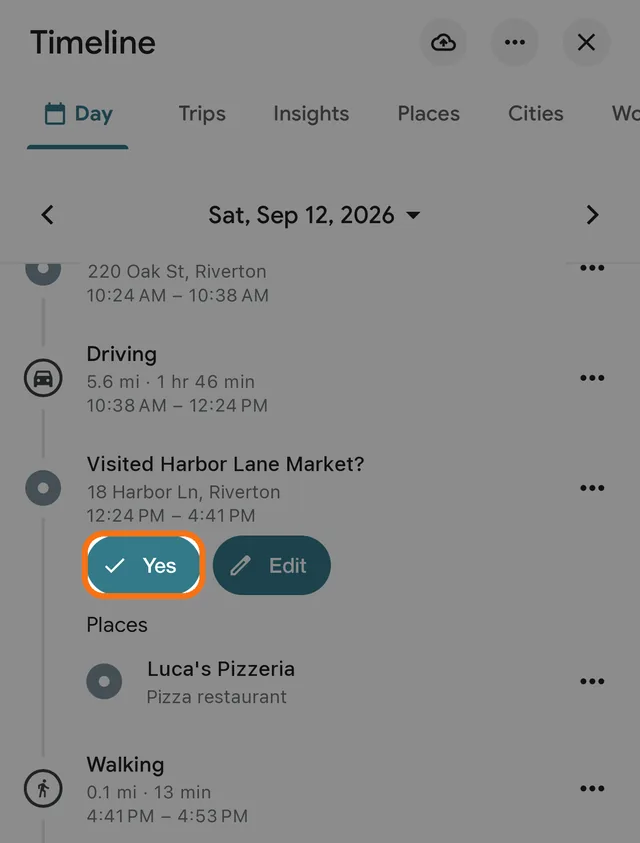
If it’s wrong, tap Edit instead and continue from step 2 below.
Change a visit to a different place
-
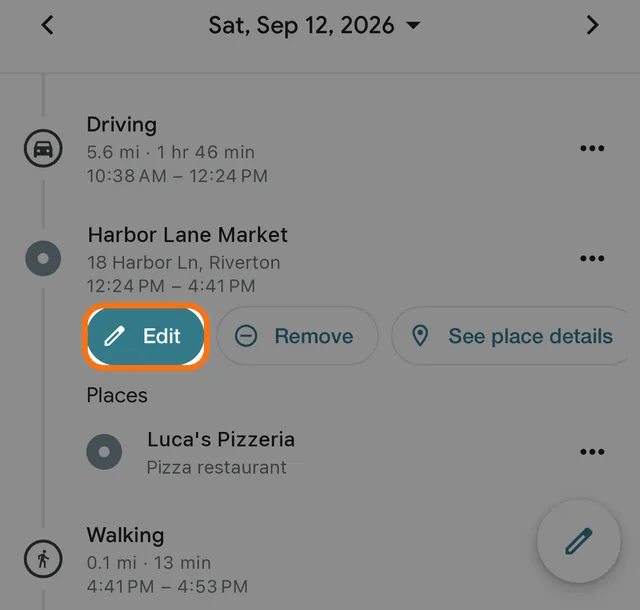
Tap the visit, then Edit
Tap the visit you want to change, then pick Edit from the buttons underneath.
-
Pick the right place
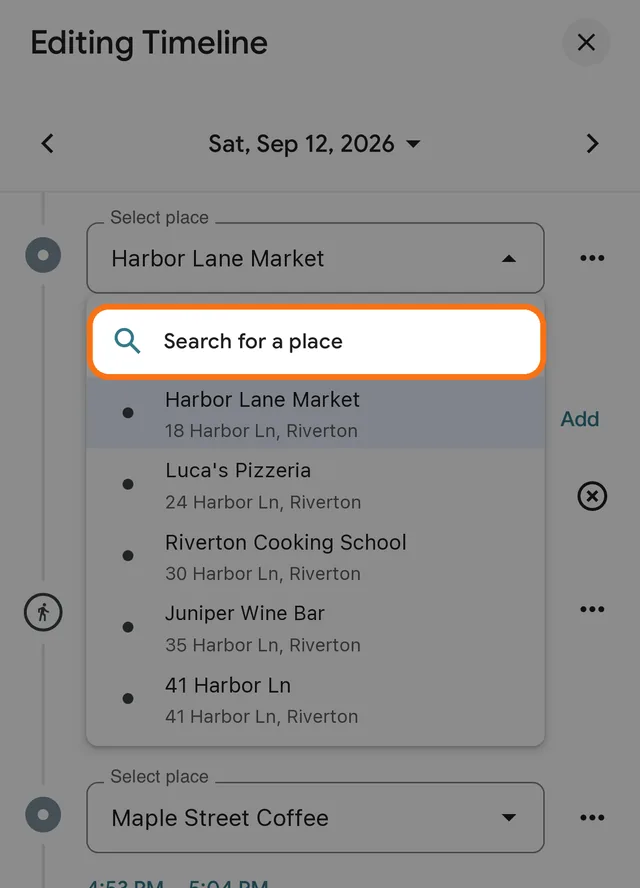
The visit turns into a Select place box. Tap it to see nearby places and pick the right one.
Don’t see it in the list? Tap Search for a place at the very top and type the name. It’s easy to miss because it looks like another row in the list.
-
Tap Done
Tap Done in the bottom right to save the change.
Have several visits to fix on the same day? Tap the round pencil button in the bottom right of Timeline. It opens the same editor with a Select place box for every visit that day.
Remove a visit
Use this for stops you never made, like a place Timeline added while you sat in traffic. Tap the three dots next to the visit and pick Remove. The same button also shows up when you tap the visit itself.
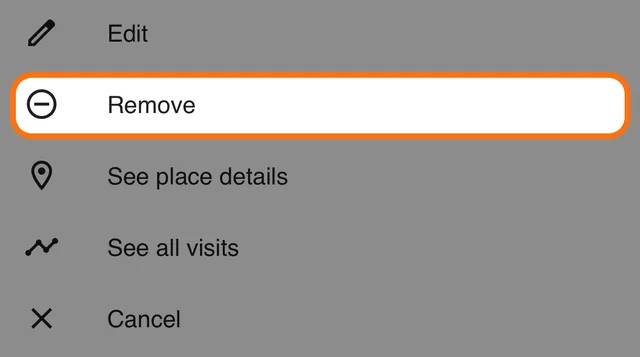
To wipe out a whole day or longer stretch, go to Settings → Location & privacy → Delete range of Timeline data in Google Maps. Double-check your dates first, since that permanently clears the range from your phone. See the deleting guide if you want to clear your backup too.
Rather not change your Google data?
If you’d rather leave your Google Maps data alone, export your Timeline and open it in Map Rewind. You can rename places, merge duplicates, and delete stray stops in your own local copy without touching Google Maps.
Troubleshooting
I don’t see Yes or Edit
Those prompts only appear for visits Timeline isn’t sure about. For any other visit, tap it to see the Edit and Remove buttons, or tap the three dots next to it.
The right place doesn’t come up in search
Try searching the street address instead of the business name. If it still doesn’t appear, pick the closest spot nearby.
Timeline keeps guessing wrong
Wrong guesses usually happen when your phone has weak location data. The accuracy guide walks through the settings that help.
See your whole Timeline on one map.
Open Map Rewind