How to delete your Google Maps Timeline
You can remove a single visit, clear a range of dates, or wipe your entire Timeline from the Google Maps app. Your phone and your cloud backup have to be deleted separately, so this guide walks through both.
Updated November 2026
Export a copy first if you might ever want your history later. Once Timeline data is deleted, Google can’t recover it. Follow the iPhone or Android export guide before you start.
Find the delete options
In Google Maps, tap your profile picture and go to Settings → Location & privacy. Scroll to the Timeline section. Both iPhone and Android have Delete all Timeline data and Delete range of Timeline data right there.
On Android, the Timeline screen inside your phone’s Settings app also has a Delete Timeline data button.
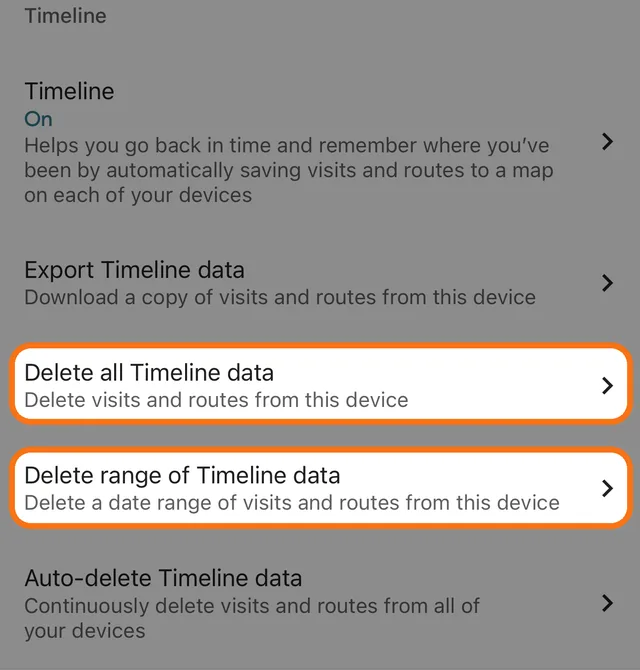
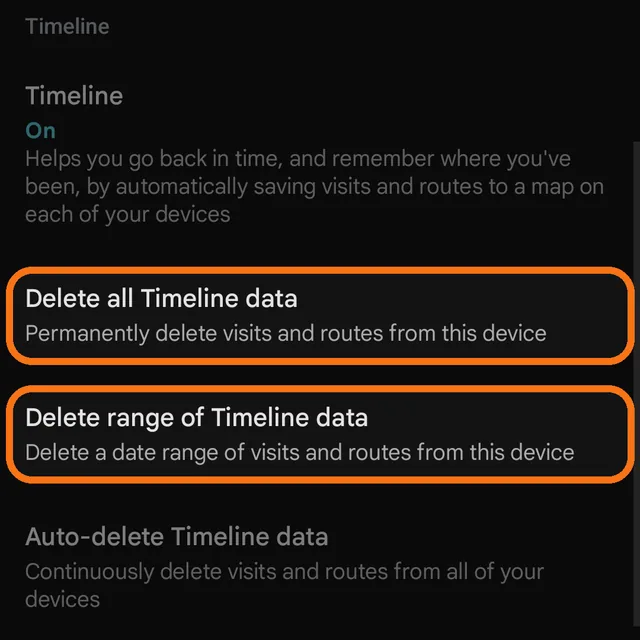
Google Maps → profile picture → Settings → Location & privacy
Delete one visit
Open that day in Your Timeline, tap the three dots next to the visit, and choose Remove. You can also tap the visit itself and tap Remove.

If the visit is just showing the wrong place, you can fix it instead of deleting it. See the editing guide.
Delete a range of dates
-
Pick the dates
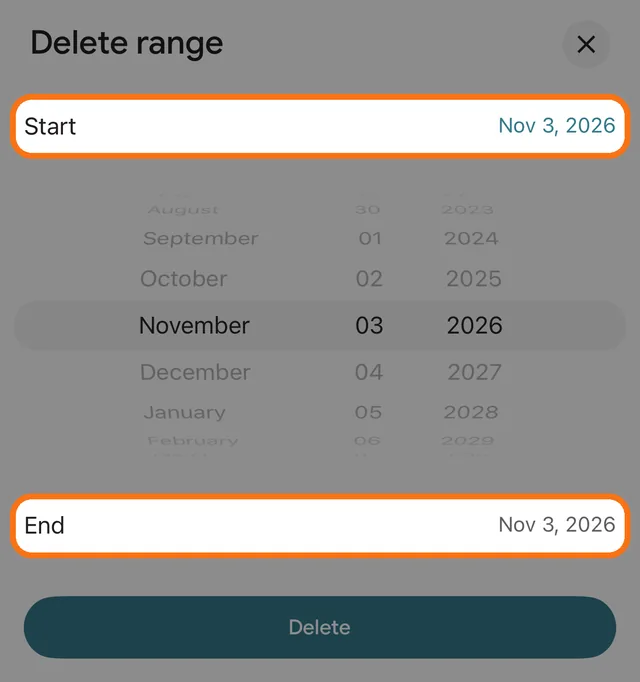
Tap Delete range of Timeline data. Tap Start and pick the first day you want removed, then tap End and pick the last day.
-
Tap Delete
Double-check both dates before tapping Delete at the bottom. Everything in that range is permanently removed from your phone.
Delete everything
-
Tap Delete all Timeline data
It’s the first delete option under Location & privacy.
-
Confirm
When the confirmation prompt pops up, check I understand and want to delete and tap Delete. That clears every visit and route from this phone.
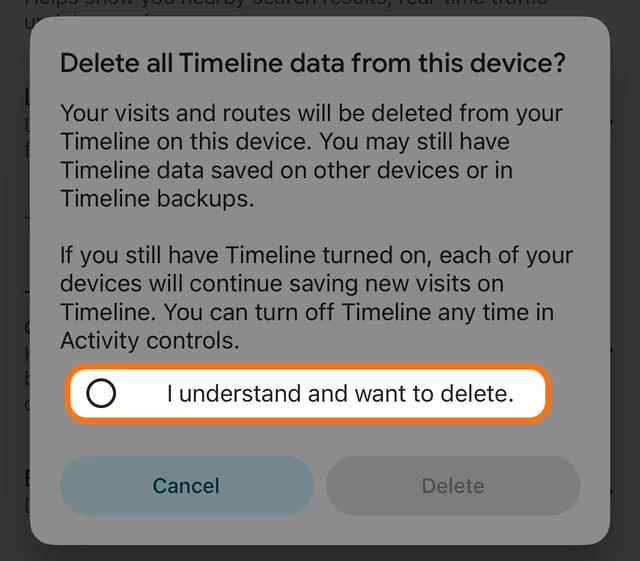
Deleting clears your saved history, but Timeline stays on and keeps logging new visits. To stop it from recording too, follow Turn Timeline off below.
Your other phones and your backup
Both delete options only clear the phone you’re holding. If you use Timeline on more than one phone, repeat the steps on each device.
Your cloud backup is separate too. To remove it, open Timeline in Google Maps, tap the cloud button at the top, and turn Backup off. Google will warn you first that turning it off deletes your backups from its servers.
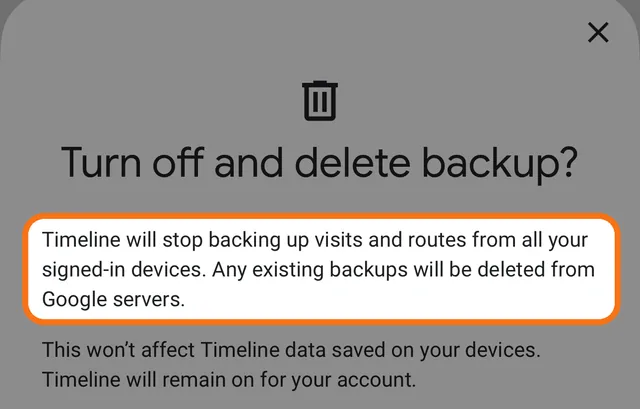
Turning off Backup only deletes the copy on Google’s servers; the history on your phone stays until you delete it there as well. To wipe everything cleanly, delete the backup and then delete the Timeline on each phone. The backup guide has screenshots of the cloud button and the Backup switch.
Delete old visits automatically
If you’d rather keep only your recent history and let older visits clear out on their own, tap Auto-delete Timeline data right below the two delete options. Choose Auto-delete activity older than, pick how long to keep, and tap Next.
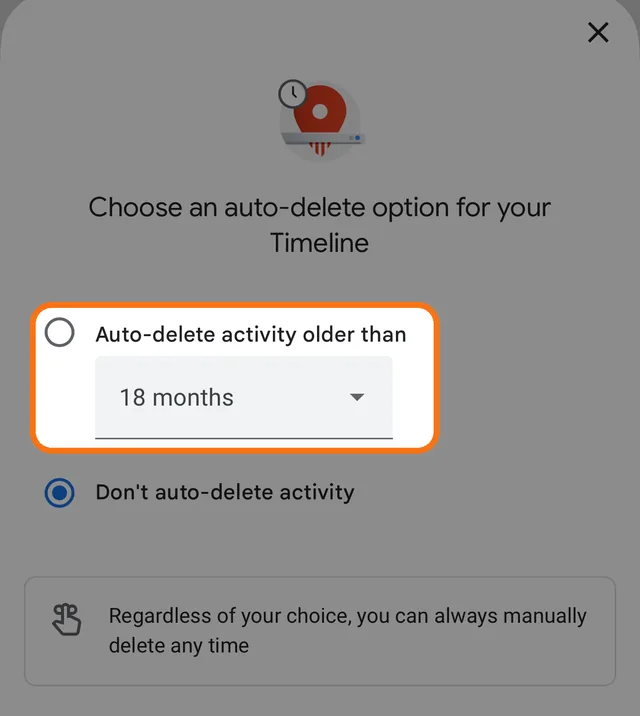
Unlike manual deletes, auto-delete applies to all of your devices. It runs in the background and clears anything older than your chosen window as time passes.
Turn Timeline off
To stop Google Maps from recording new visits, tap Timeline at the top of Location & privacy. That opens the Timeline page for your Google account. Tap Turn off (pick Turn off instead of Turn off and delete activity if you want to keep what’s already saved). On Android, you can also get there from your phone’s Timeline settings by tapping Timeline is on.

Turning Timeline off stops new visits from being saved. It won’t delete the ones already on your phone, so do both if you want a clean slate.
Troubleshooting
Deleted visits came back
They almost certainly came from your cloud backup. Restoring a backup on a new phone brings back whatever was stored in it. Turn off Backup to delete the cloud copy too.
I don’t see the delete options
Update Google Maps from the App Store or Play Store, then make sure you’re signed in to the Google account that has your Timeline.
I deleted something by mistake
Google can’t bring it back once it’s deleted from your phone. If you exported your Timeline earlier, that file still has everything, and you can open it in Map Rewind anytime.
Look back at your Timeline before it’s gone.
Open Map Rewind